Two thousand files. One of them contains the word "deadline" and you do not know which. Your file manager offers you a search box, a progress bar, and hope. The shell offers you predators.
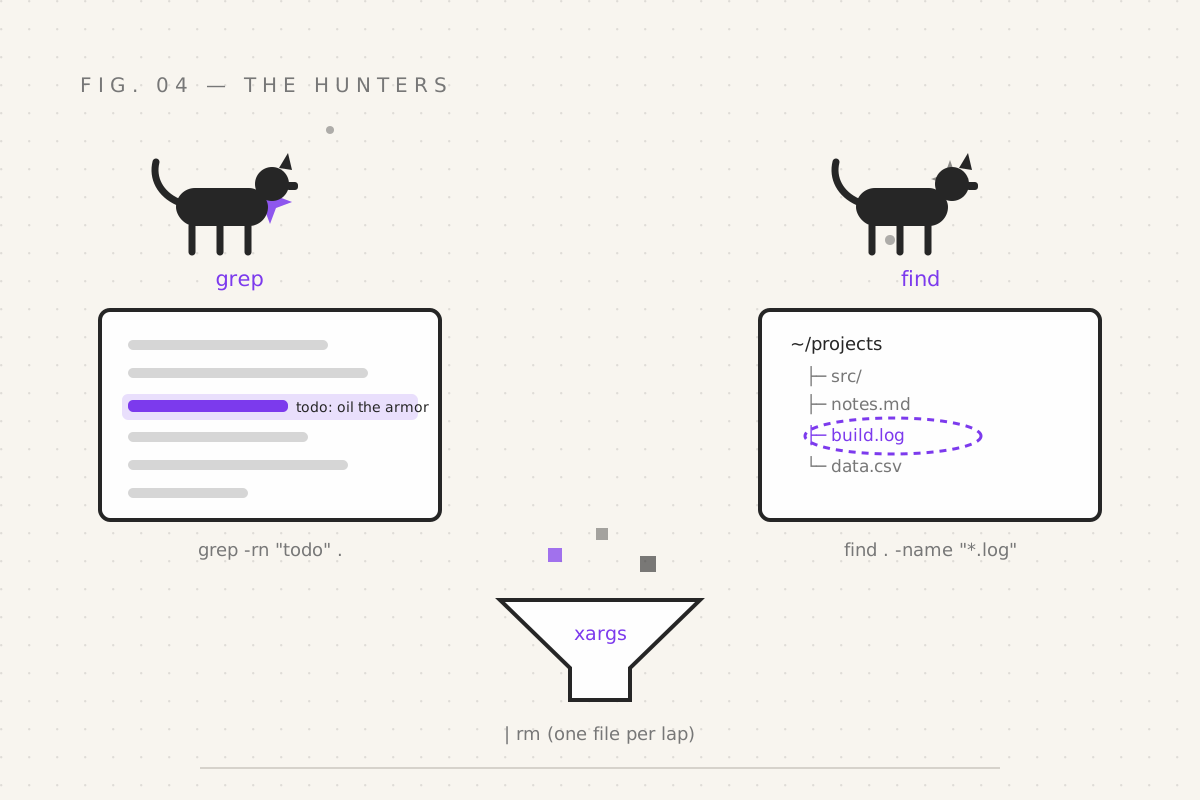
grep: the text bloodhound
grep searches inside files. Global Regular Expression Print — a name only a
1970s engineer could love, for a tool you'll love unconditionally.
Basic hunt:
grep "todo" notes.md            # print every line in notes.md containing "todo"
grep "error" app.log
The options that matter, in descending order of life-changingness:
grep -r "todo" .                # r = recursive: hunt through EVERY file in the folder tree
grep -i "error" app.log         # i = ignore case: catches Error, ERROR, eRrOr (cowboy commits)
grep -n "todo" notes.md         # n = line numbers: so you can jump straight to the spot
grep -v "success" app.log       # v = invert: show everything EXCEPT lines with "success"
grep -c "panic" app.log         # c = count: how many times did we panic today
grep -rn "FIXME" ~/projects     # the combo move: every FIXME in all your projects, with numbers
That last one? Run it in your projects folder some evening. The output is called "job security" and it is measured in dozens.
The regular expression pay raise
grep's real power is patterns, not just words:
grep "E_[a-z]*" header.h        # find E_ followed by lowercase letters
grep "^Error" app.log           # lines that START with Error (^ = anchor to line start)
grep "donequot; tasklist.txt       # lines that END with done ($ = anchor to line end)
grep -E "cat|dog" pets.txt      # -E allows extended patterns: cat OR dog
^ and $ anchor hunts; [a-z] matches a class of characters; | means "or".
This is regular expression country, a whole subject unto itself — for today,
these four runes are the 80/20.
find: the file tracker
Where grep hunts text, find hunts files themselves — by name, size, age, or
type, anywhere on the machine:
find . -name "*.log"            # every .log file from here down
find . -name "*.log" -type f    # -type f = files only (not directories)
find . -type d -name "node_modules"   # every folder named node_modules (all 400 of yours)
find . -size +100M              # everything bigger than 100 megabytes (the disk hogs)
find . -mtime -7                # files modified in the last 7 days
find . -name "tmp*" -mtime +30  # tmp files untouched for a month: the ancient and the forgotten
Syntax confession time: find is famously backwards. The order is find where what — location first, then the filters — and -size +100M means
"more than", not "at". Everyone looks it up. The man page is not a moral
failing; it's a lifestyle.
The disk-cleanup combo, beloved by sysadmins:
find . -name "*.log" -size +50M    # find the fat logs first...
find . -name "*.log" -size +50M -delete    # ...then delete them. After the first command.
Note the ritual: run the find alone, look at what will die, and only then add
-delete. Same doctrine as part 03's wildcards. The shell is powerful; the
wizard is the safety catch.
xargs: the falconer
find locates the prey. xargs takes each result and acts on it — passing
every found item as an argument to another command:
find . -name "*.tmp" | xargs rm             # every .tmp file, deleted
find . -name "*.bak" | xargs rm             # every .bak file, gone
grep -rl "oldname" . | xargs sed -i 's/oldname/newname/g'   # (sed arrives in part 10)
Read that first one as a sentence: "find every .tmp file, hand each one to rm." A thousand files, one line. A file manager would still be loading its spinner.
Your quest
-
grep -rn "TODO" ~/projects— meet your future - Plant a fake clue:
echo "hidden treasure" > .secret, then find it withgrep -rand confirm find can locate it by name withfind . -name ".secret" - Find every file over 100M on your machine. Simply know. (Knowledge is the first stage of disk grief.)
-
find . -name "*.tmp" | xargs rmon some sacrificial temp files
Next: part 05 — Pipes & Plumbing, where we stop hunting alone and start chaining commands into pipelines — the shell's true superpower.
Filed under Wizardy of Bash — part 04 of 15 · Previous: The Spellbook · Next: Pipes & Plumbing