Somewhere inside your computer is a room with no buttons. No taskbar, no notifications asking whether you've seen this new show, no cursor that turns into a spinning beach ball of despair. Just a dark rectangle, a blinking line, and a single rune:
$That $ is not decoration. It is a job interview question, asked fresh every
time: speak, and I shall do exactly what you say.
This is part 01 of the Wizardy of Bash bash crash course — fifteen parts that take you from "what is this thing" to writing scripts your future self will high-five. Today's prerequisites: a computer with a terminal. You already have one. Yes, even on Windows. Especially on Windows.
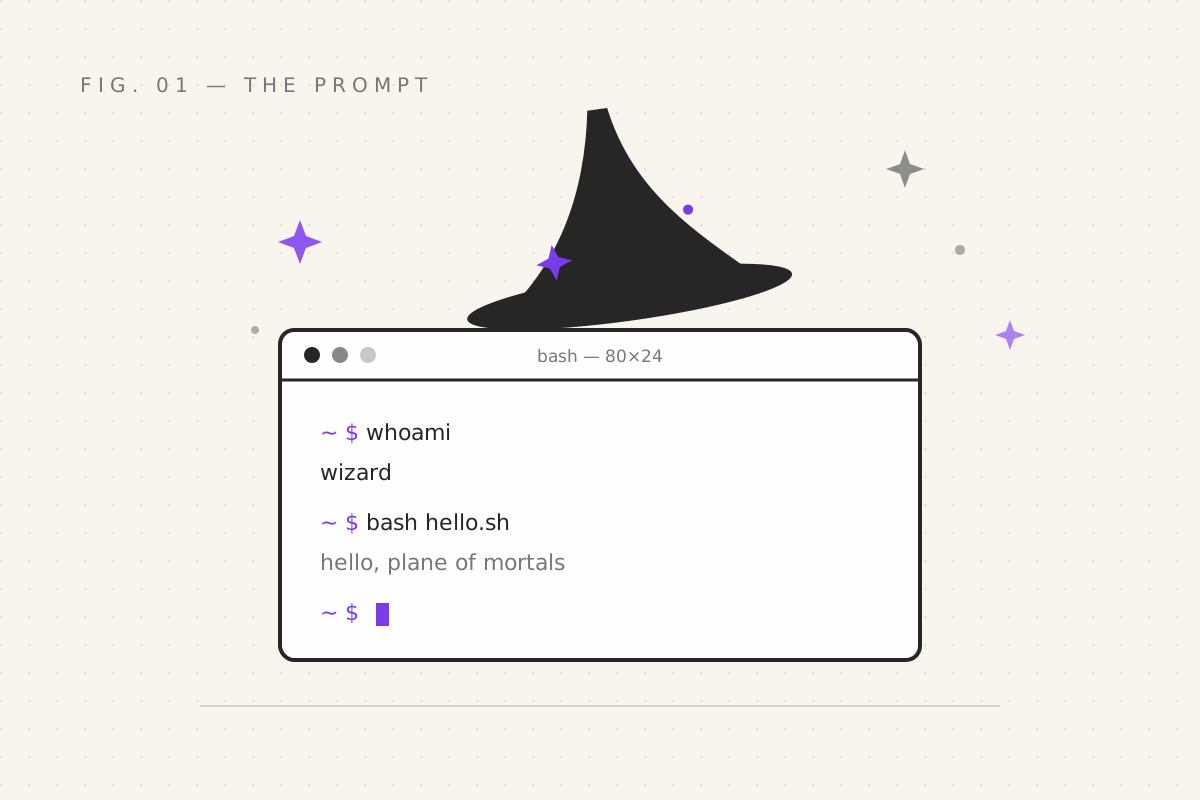
The shell, the terminal, and other confused vocabulary
People use these words interchangeably and then argue about it online, which is the internet's national sport. The actual hierarchy:
- Terminal — the window. The room. The glass box.
- Shell — the program running inside the box that reads what you type and
does it. There are several:
bash,zsh,fish,sh. Think of them as bartenders — different personalities, same job. - Bash — the bartender this course is named after. Short for Bourne Again SHell, a pun on "born again" that a room full of engineers in 1989 were inordinately proud of. It lives on every Linux machine, hides inside every macOS, and is available on Windows (part 02 covers the treaty negotiations).
Why learn this when you have a mouse? Because clicking is a reaction, but the prompt is a language. Anything you can type, you can save. Anything you can save, you can automate. Anything you can automate, you can run at 3 AM while you sleep, dreaming whatever it is people who automate things dream about. (Probably also scripts.)
Reading the prompt
Open your terminal. You'll see something like:
nirmit@tower:~$Decoding this rune, left to right:
| Bit | Meaning |
|---|---|
nirmit |
your username — who the computer thinks you are |
tower |
the machine's name (the "host") |
~ |
your current location — ~ means "home", your default room |
$ |
"I am listening, and I have normal privileges" |
If you ever see # instead of $, that means you're the administrator — a
wizard with unlimited power and no brakes. Powerful, yes. Do not get used to it.
Your first spells
Type these, pressing Enter after each (Enter is the "so mote it be" of spellcasting):
whoami
pwd
echo "hello, plane of mortals"
date
Line by line:
whoami— asks the computer who you are. Occasionally triggers an existential crisis. Usually just answers your username.pwd— print working directory. "Where am I?" It's a compass that, unlike your GPS, has never once suggested driving into a lake.echo— the parrot. Repeats whatever you give it. Looks useless today; you will use it constantly for the rest of your scripting life, which is a very bash thing for a command to be.date— tells you the date. You will forget this exists and check your phone instead. No judgement. Some judgement.
nirmit
/home/nirmit
hello, plane of mortals
Tue Sep 29 10:14:03 IST 2026
Notice how terse the spell names are.
pwd,ls,cat,man. In the 1970s, typing was slow and screens had room for about one tweet. The names are abbreviations, not attitudes — the shell is not being rude at you. Probably.
Tab: the spell you'll cast a thousand times a day
Here is the secret that separates people who enjoy the terminal from people who merely tolerate it: Tab completion.
Type ec and press Tab. The shell finishes echo for you. Type cd Doc,
press Tab → cd Documents/. This is autocomplete that doesn't try to sell
you ad space or guess that you meant a cryptocurrency. It simply knows what
exists and finishes your sentence.
Also press the up arrow. Your last spell reappears, ready to edit. Every
spell you've cast is remembered — run history to see the full record of your
past decisions, including typos, preserved forever like carvings on a cave
wall.
The ancient tome: man
Every spell comes with documentation, and it's already on your machine. To read it:
man echoA page appears. Scroll with the arrow keys, page down with space, and
leave with q — for "quit", and eventually for "quickly, the tome is
endless". Try man man: the tome describing the tome. Extremely wizard.
If man feels too formal, most spells accept --help, which prints a shorter,
friendlier summary. man is the full grimoire; --help is the sticky note on
the grimoire's cover.
The panic sigil (you'll want this early)
If a spell is running and won't stop — you started something huge, or you're
trapped in a tome — press Ctrl+C. That is the panic sigil. It means stop,
cease, unalive this process. Ninety percent of terminal fear dissolves the
moment you learn Ctrl+C exists. The remaining ten percent is rm -rf, which we
meet in part 03 with appropriate ceremony.
Clear the screen with clear, or its stylish cousin Ctrl+L.
Your quest
Before part 02:
- Open a terminal (on Windows: the one called "Git Bash" — explained soon)
- Cast
whoami,pwd, andechowith a compliment for yourself - Press Tab mid-word and feel the future arrive
- Open
man echo, scroll around, exit withq - Run
historyand read your own legend
Next: part 02 — Bash on Every Machine, where we get bash running on Windows without performing an exorcism, and build the keyboard habits that make you fast.
Filed under Wizardy of Bash — part 01 of 15 · Previous: none, you stand at the gateway · Next: Bash on Every Machine